
Waze is not installed on a car GPS in the traditional sense. The application works on a smartphone and can then be projected onto the vehicle’s screen via a connection protocol. The only exception is for vehicles equipped with Android Automotive OS, where Waze is downloaded directly from the embedded store. Understanding this distinction prevents you from searching for a manipulation that does not exist on most infotainment systems.
Proprietary GPS systems provided by manufacturers (Renault R-Link, Peugeot NAC, Volkswagen Discover, etc.) do not allow Waze to be installed natively. Their operating system is closed: no app store, no possibility to load an APK file. The only way to display Waze on these screens is through Android Auto or Apple CarPlay, two protocols that project the phone’s interface onto the central screen.
To understand the procedure, it is necessary to distinguish three technical scenarios, each with its own constraints. Knowing which one corresponds to your vehicle determines the entire procedure to install Waze on the car GPS reliably.
Waze Projection via Android Auto: Connection and Screen Configuration
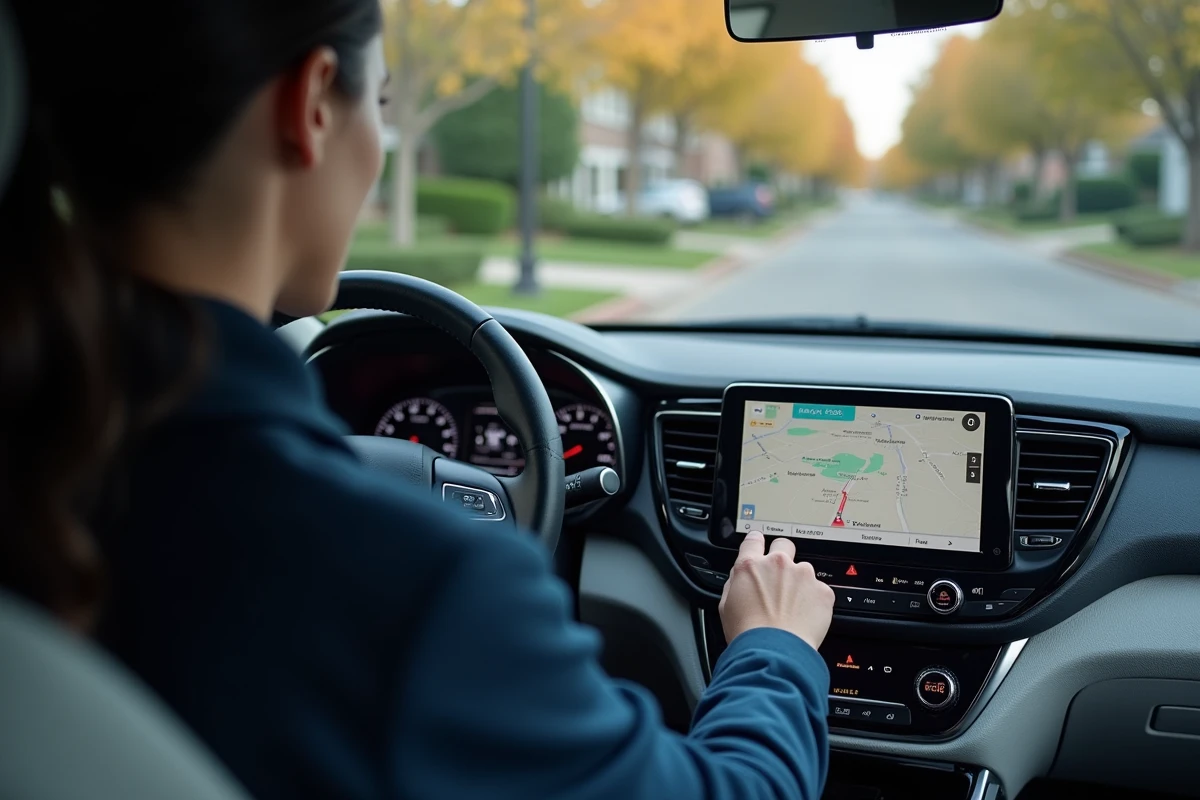
Android Auto transforms the vehicle’s screen into an extension of the smartphone. Waze runs on the phone, but the display, touch controls, and voice guidance are sent to the onboard system. The phone remains the brain; the car’s screen is just a monitor.
Hardware and Software Requirements
- A smartphone running Android 10 or higher, with the updated Waze app downloaded from the Google Play Store.
- A certified USB cable (some low-quality charging cables do not transmit data, which blocks detection).
- An infotainment system compatible with Android Auto, which covers the majority of vehicles sold since 2018-2019.
Connect the phone to the vehicle’s USB port. Android Auto launches automatically if the function is enabled in the onboard system settings. On the screen, the Waze icon appears in the app launcher.
Waze via Android Auto does not work with Bluetooth alone for navigation. Bluetooth transmits audio and calls, but projecting the map requires a wired USB connection, or, on some recent vehicles, a wireless Android Auto connection (Wi-Fi Direct). Check your vehicle’s manual to see if wireless mode is supported.
Apple CarPlay and Waze: Specifics of the iPhone Connection
Operation with CarPlay is based on the same projection principle, but the Apple environment imposes some differences. Waze is officially compatible with Apple CarPlay, which has not always been the case (the app was only supported after a specific update from Apple).
Connect the iPhone to the vehicle’s USB port or, if the system allows, pair it via wireless CarPlay. Launch Waze from the CarPlay screen. The interface automatically adjusts to the size of the dashboard screen, with larger buttons and a night mode synchronized with the dashboard lighting.
Point of Caution Regarding the iOS Version
The Waze app requires iOS 16 or higher. Older iPhones (iPhone 7 and earlier running iOS 15) no longer receive Waze updates, which can cause crashes or incompatibilities with CarPlay. If the Waze icon does not appear on the vehicle’s screen, it is often the iOS version that is the issue, not the car’s system.
Waze Integrated on Android Automotive OS: The Case Without a Smartphone
Some recent vehicles come with Android Automotive OS (AAOS), a Google operating system installed directly in the infotainment computer. The difference with Android Auto is fundamental: here, the vehicle has its own Google Play Store.
On these models (some Volvos, Polestar, Renault Megane E-Tech, among others), Waze can be downloaded and installed like a regular app, without a connected phone. Navigation uses the vehicle’s built-in data connection or the smartphone’s Wi-Fi hotspot.
Since 2023, Waze offers a version dedicated to AAOS. The connection to the account is made via a QR code displayed on the dashboard screen, scanned with the phone. The smartphone is no longer necessary once the session is open.
Common Issues and Concrete Resolutions When Displaying Waze in the Car
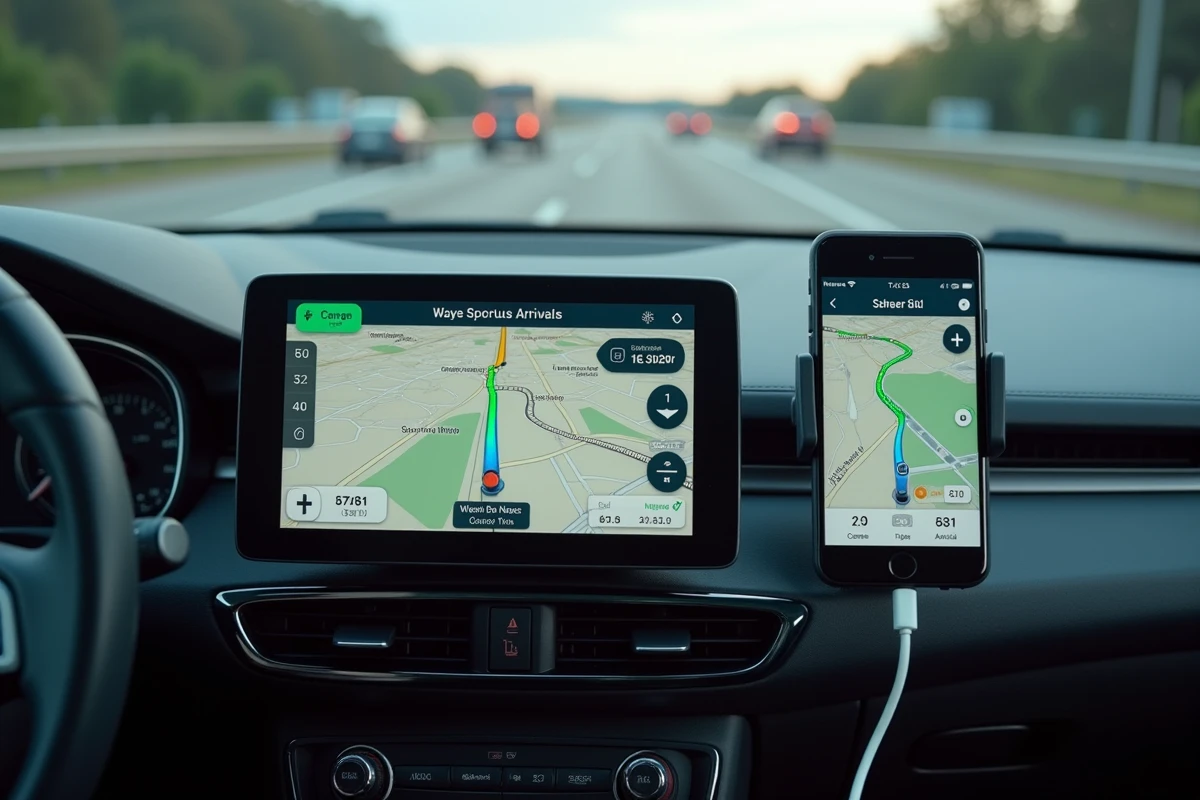
The display of Waze on the dashboard screen often fails due to peripheral hardware rather than the app itself. Three situations frequently arise.
Waze Does Not Display After USB Connection
The cable is the primary cause. A cable that charges the phone does not necessarily transmit data. Test with a certified USB-C or Lightning cable from the phone’s manufacturer. On some vehicles, only a specific USB port (often marked with a phone icon) supports Android Auto or CarPlay.
The App Closes or Loses GPS
Waze requires an active mobile data connection to load real-time traffic information. In areas of weak coverage, guidance continues based on the last loaded route, but community alerts and route recalculation require a network signal. Disabling the phone’s power-saving mode also improves GPS connection stability.
No Sound from the Vehicle’s Speakers
Waze’s voice guidance transmits through the audio channel of Android Auto or CarPlay. If the media volume of the onboard system is muted or redirected to another source (FM radio, DAB), the voice instructions remain silent. Check the navigation volume setting in the Waze settings (sound icon at the bottom left of the map), which is separate from the general phone volume.
The choice between projection (Android Auto, CarPlay) and native installation (AAOS) depends solely on the system embedded in your vehicle. For the vast majority of current vehicles, projection remains the only option. Checking the compatibility of your onboard system before any manipulation is the first useful reflex, well before looking for an installation tutorial.